---
title: Build an AI Research Digest with n8n — No Code, Real Output in 6 Steps
description: Build a fully automated AI newsletter that fetches the top 10 Hacker News stories daily, summarizes each with GPT, and formats a polished digest email — all in n8n's visual canvas. Every node was wired and executed live on n8n cloud. No code required beyond one simple JavaScript snippet.
url: https://nerdleveltech.com/guides/n8n-ai-workflows
language: en
last_updated: '2026-04-11'
category: tooling
reading_time_minutes: 25
author: NerdLevelTech
keywords:
- n8n tutorial
- n8n AI workflow
- n8n Hacker News
- n8n summarization chain
- n8n AI agent
- build newsletter automation n8n
- n8n OpenAI integration
- n8n no-code automation
- n8n schedule trigger
- workflow automation AI
- n8n cloud
markdown_url: https://nerdleveltech.com/guides/n8n-ai-workflows.md
attribution: 'Source: NerdLevelTech — https://nerdleveltech.com/guides/n8n-ai-workflows'
terms: https://nerdleveltech.com/llms.txt
---
# Build an AI Research Digest with n8n — No Code, Real Output in 6 Steps
*Last updated: 2026-04-11 | Verified on: nerdleveltech.app.n8n.cloud | n8n cloud | gpt-5-mini via n8n free credits*
> **Every node in this guide was wired and executed live on n8n cloud.** The newsletter digest shown is real AI output — not fabricated. You can reproduce it in under 30 minutes on n8n's free tier.
## What You'll Build
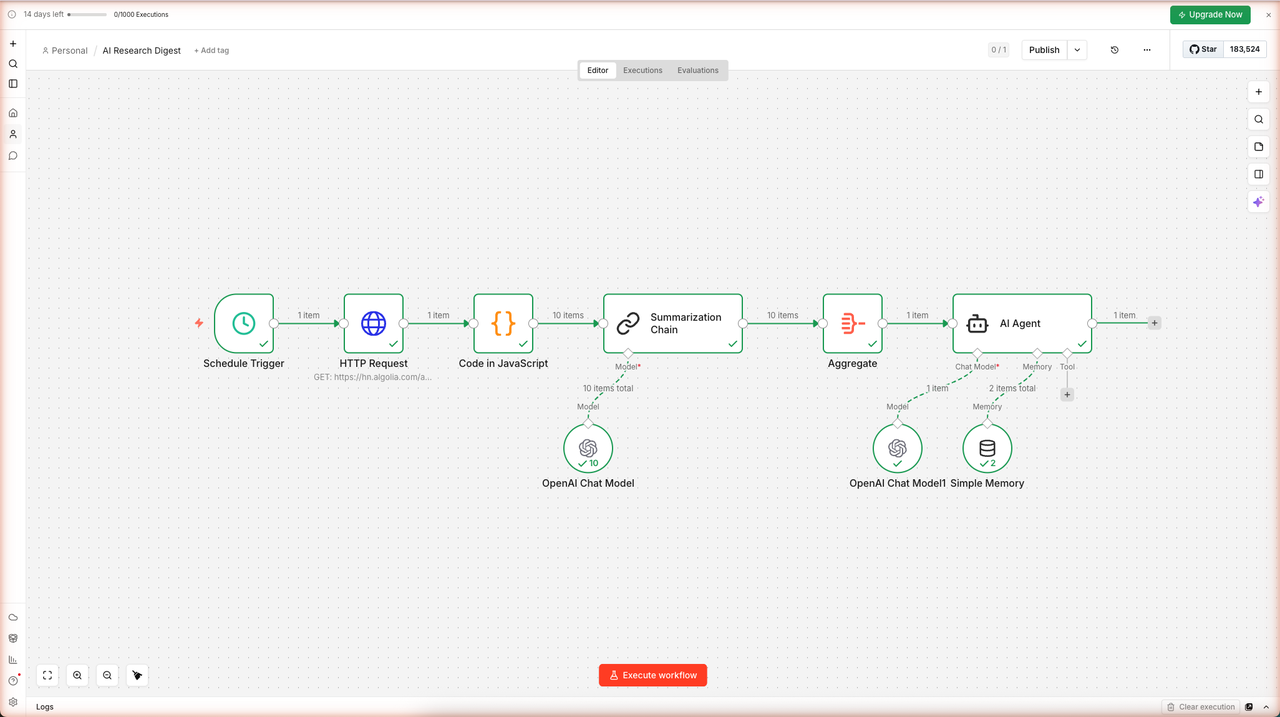
By the end of this guide you will have a **fully automated AI research digest** that:
- Fetches the **top 10 Hacker News front-page stories** every day via the Algolia API
- Uses an **AI Summarization Chain** to write a one-sentence summary for each story
- Collapses all 10 summaries into a single item with the **Aggregate node**
- Passes everything to an **AI Agent** (with memory) to write a polished newsletter digest
- Is ready to connect to Gmail, SendGrid, or any email provider for automatic delivery
The complete workflow looks like this — 6 main nodes plus 3 AI sub-nodes, all wired and executed:
 ### Skip the Manual Build — Import the Workflow
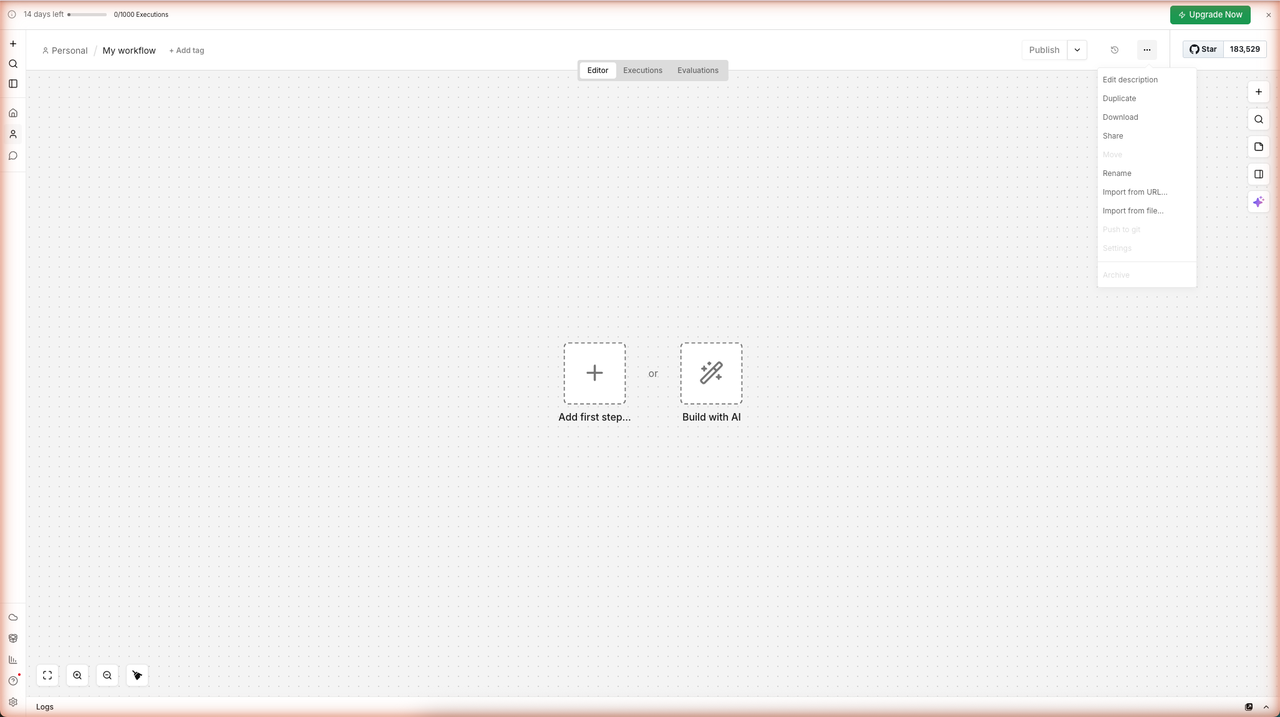
Don't want to wire every node by hand? Download the complete workflow JSON and import it directly into n8n. You'll only need to reconnect your OpenAI credentials on two nodes.
**To import:** Create a new workflow → click **`···`** (top right) → **Import from file…** → select the downloaded JSON. n8n loads all 9 nodes and their connections. Then open the **OpenAI Chat Model** sub-node under Summarization Chain, and the **OpenAI Chat Model1** sub-node under AI Agent, and set your credential on each.
### Skip the Manual Build — Import the Workflow
Don't want to wire every node by hand? Download the complete workflow JSON and import it directly into n8n. You'll only need to reconnect your OpenAI credentials on two nodes.
**To import:** Create a new workflow → click **`···`** (top right) → **Import from file…** → select the downloaded JSON. n8n loads all 9 nodes and their connections. Then open the **OpenAI Chat Model** sub-node under Summarization Chain, and the **OpenAI Chat Model1** sub-node under AI Agent, and set your credential on each.
 ---
## Prerequisites
### What You Need
| Requirement | Details |
|-------------|---------|
| n8n account | Free tier on [n8n.io/cloud](https://n8n.io/cloud) — 14-day trial, no credit card |
| OpenAI credits | n8n offers **100 free OpenAI API credits** built-in — no OpenAI account needed for this guide |
| Time | ~30 minutes |
### What Is n8n?
n8n[^1] is an open-source workflow automation platform with 100,000+ GitHub stars as of April 2026. It lets you connect APIs, databases, and AI services with a visual node-based editor — think Zapier but self-hostable, with full JavaScript support and native LangChain-based AI nodes.
**n8n's AI node types used in this guide:**
| Node | Purpose |
|------|---------|
| **Summarization Chain** | Processes each input item through an LLM prompt — runs per-item in batch |
| **AI Agent** | LLM reasoning loop with tool-use and memory — handles multi-step formatting |
| **OpenAI Chat Model** | Language model sub-node attached to Summarization Chain or AI Agent |
| **Simple Memory** | In-process session memory attached to an AI Agent |
---
## Step 1 — Create an n8n Account
Go to [n8n.io/cloud](https://n8n.io/cloud) and sign up for a free trial. After email confirmation, you land on the **n8n home dashboard** showing your workflows list.
---
## Prerequisites
### What You Need
| Requirement | Details |
|-------------|---------|
| n8n account | Free tier on [n8n.io/cloud](https://n8n.io/cloud) — 14-day trial, no credit card |
| OpenAI credits | n8n offers **100 free OpenAI API credits** built-in — no OpenAI account needed for this guide |
| Time | ~30 minutes |
### What Is n8n?
n8n[^1] is an open-source workflow automation platform with 100,000+ GitHub stars as of April 2026. It lets you connect APIs, databases, and AI services with a visual node-based editor — think Zapier but self-hostable, with full JavaScript support and native LangChain-based AI nodes.
**n8n's AI node types used in this guide:**
| Node | Purpose |
|------|---------|
| **Summarization Chain** | Processes each input item through an LLM prompt — runs per-item in batch |
| **AI Agent** | LLM reasoning loop with tool-use and memory — handles multi-step formatting |
| **OpenAI Chat Model** | Language model sub-node attached to Summarization Chain or AI Agent |
| **Simple Memory** | In-process session memory attached to an AI Agent |
---
## Step 1 — Create an n8n Account
Go to [n8n.io/cloud](https://n8n.io/cloud) and sign up for a free trial. After email confirmation, you land on the **n8n home dashboard** showing your workflows list.
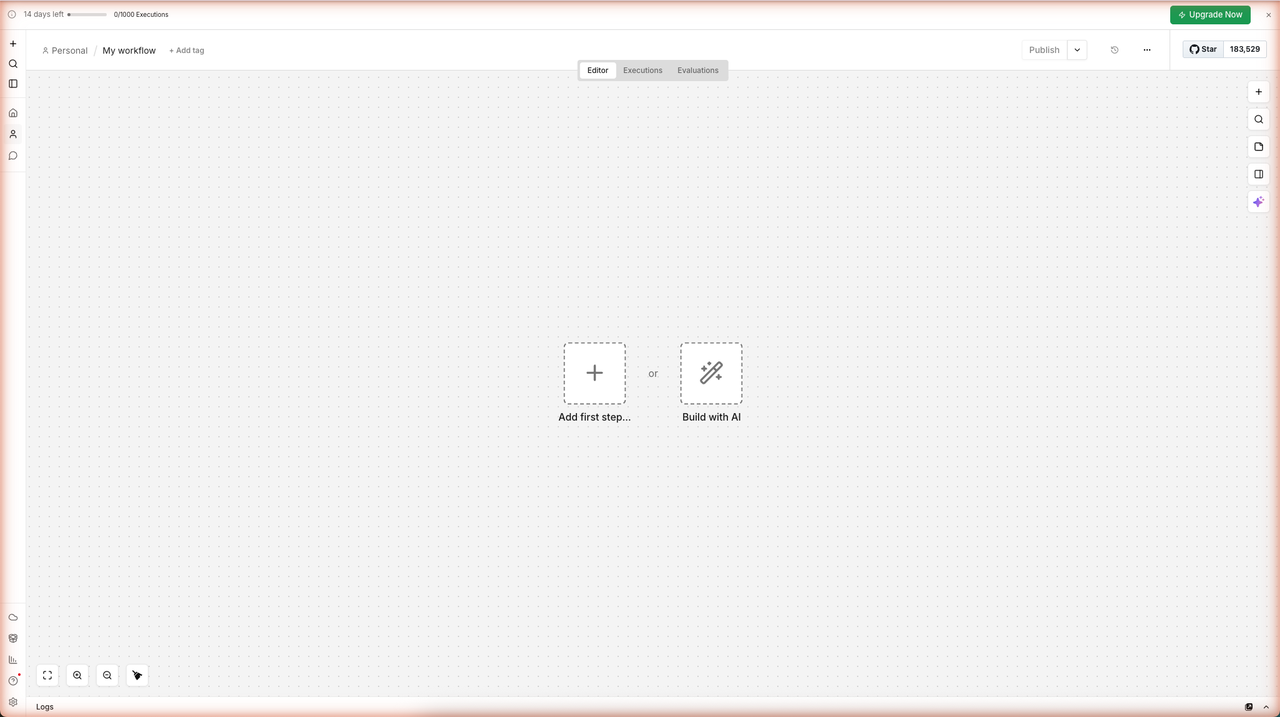
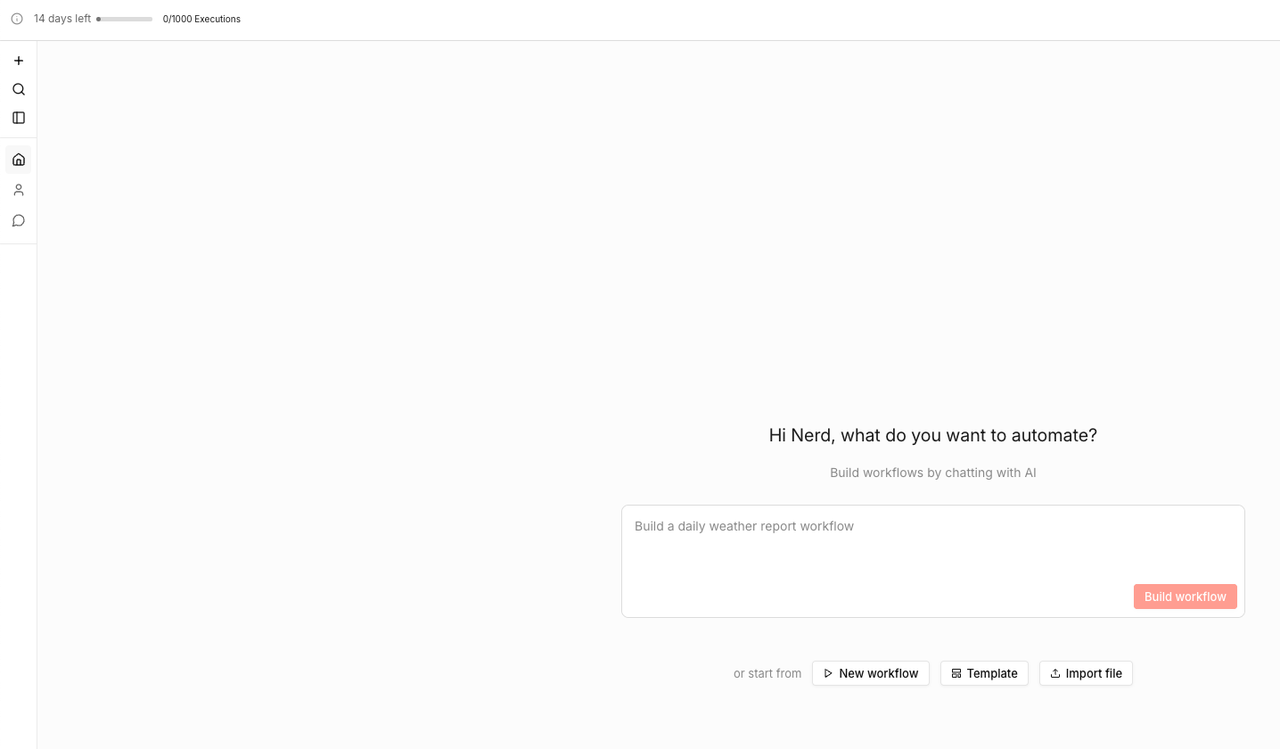 Click **+ Create workflow** (or the **New workflow** button). n8n opens a blank canvas with two placeholders — **Add first step…** and **Build with AI**. This is your starting point.
 **Claim your free OpenAI credits:** In the left sidebar, look for a banner that says "Claim free AI credits." Click it and accept to receive 100 free OpenAI API credits. These credits work with `gpt-5-mini`, `gpt-4.1-mini`, `gpt-4.1-nano`, `gpt-4o-mini`, `text-embedding-3-small`, and other models — enough to run this entire guide for free.
> **Note:** The free trial gives you 14 days and 1,000 workflow executions. The free OpenAI credits are separate and do not expire with the trial.
---
## Step 2 — Add a Schedule Trigger
A trigger node starts every workflow. For a daily digest, you need a **Schedule Trigger** that fires once per day.
### 2a. Add the Trigger
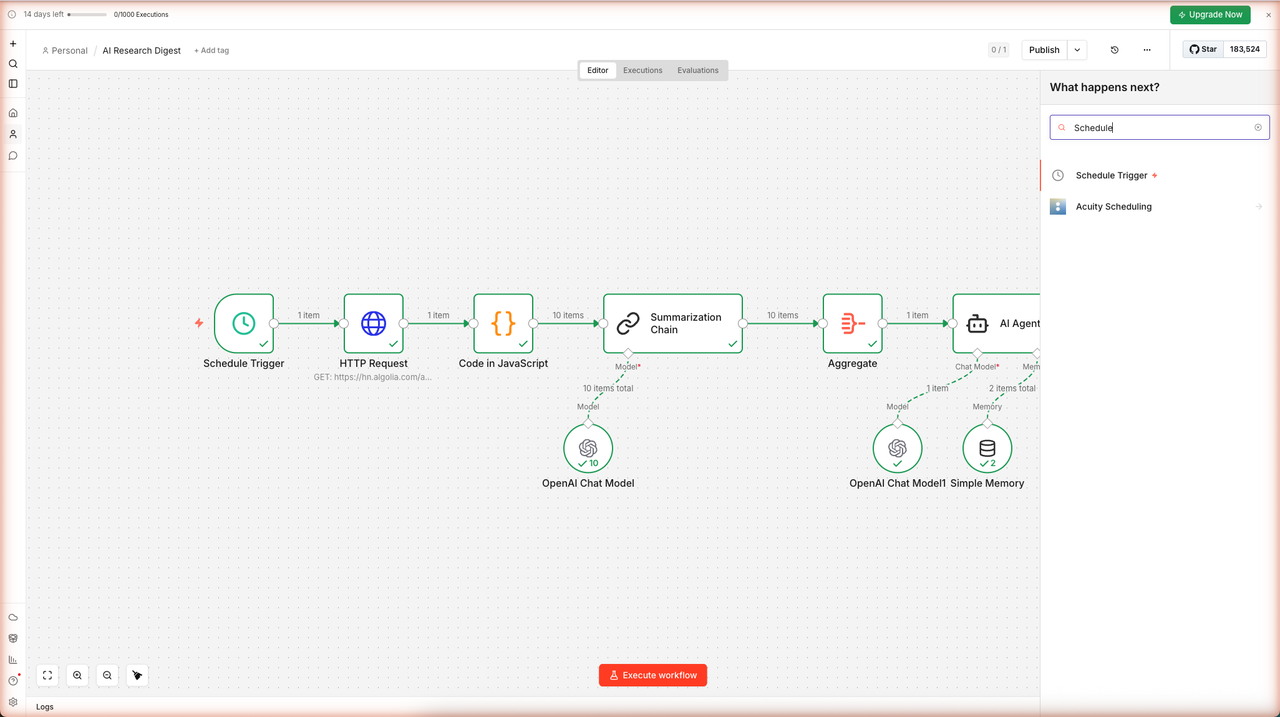
Click the **+** button on the blank canvas (or click the placeholder node). In the node search panel that slides open, type **Schedule** and select **Schedule Trigger**.
**Claim your free OpenAI credits:** In the left sidebar, look for a banner that says "Claim free AI credits." Click it and accept to receive 100 free OpenAI API credits. These credits work with `gpt-5-mini`, `gpt-4.1-mini`, `gpt-4.1-nano`, `gpt-4o-mini`, `text-embedding-3-small`, and other models — enough to run this entire guide for free.
> **Note:** The free trial gives you 14 days and 1,000 workflow executions. The free OpenAI credits are separate and do not expire with the trial.
---
## Step 2 — Add a Schedule Trigger
A trigger node starts every workflow. For a daily digest, you need a **Schedule Trigger** that fires once per day.
### 2a. Add the Trigger
Click the **+** button on the blank canvas (or click the placeholder node). In the node search panel that slides open, type **Schedule** and select **Schedule Trigger**.
 ### 2b. Configure Daily Interval
The Schedule Trigger panel opens with a "Trigger Interval" dropdown. Set it to **Days** and leave the time at its default (or set it to `07:00` for a 7 AM digest). The node immediately shows a preview of its next execution time.
### 2b. Configure Daily Interval
The Schedule Trigger panel opens with a "Trigger Interval" dropdown. Set it to **Days** and leave the time at its default (or set it to `07:00` for a 7 AM digest). The node immediately shows a preview of its next execution time.
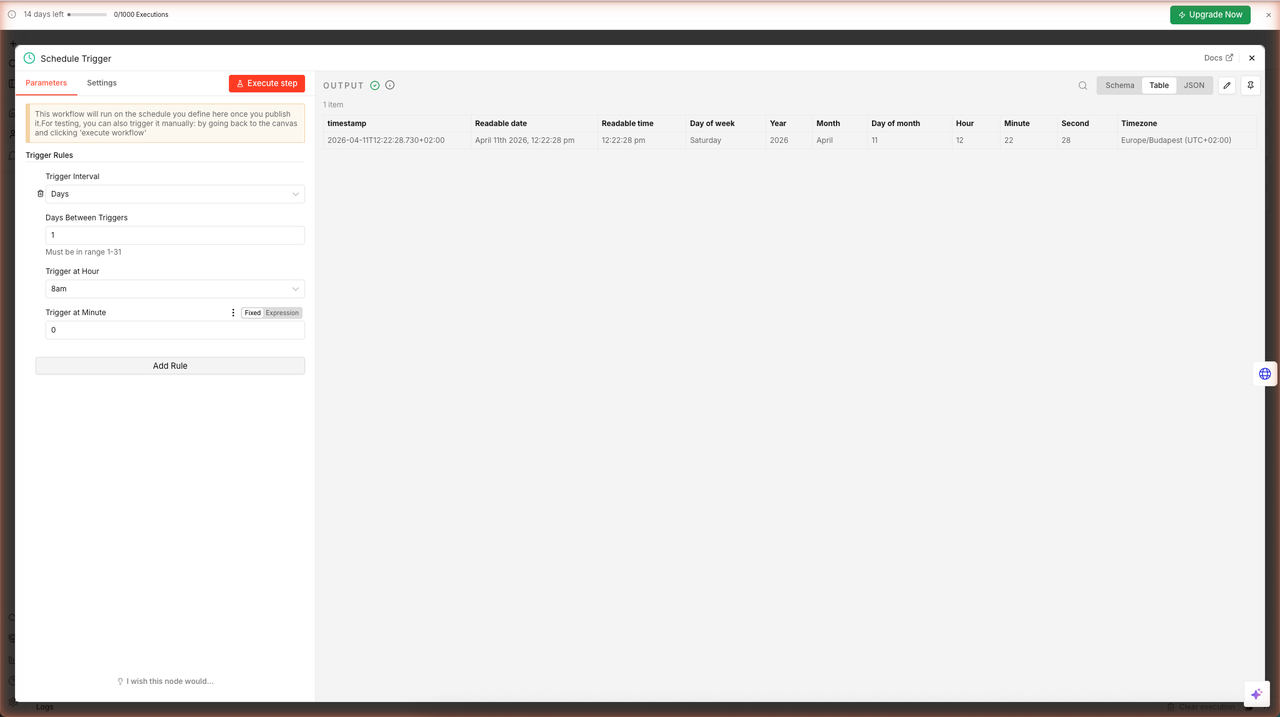 Click the **X** to close the panel (the node saves automatically). You now have a trigger that will fire every day.
---
## Step 3 — Fetch Hacker News Stories
The Hacker News Algolia API[^2] returns front-page stories as JSON — no authentication required.
### 3a. Add an HTTP Request Node
Click the **+** after the Schedule Trigger node. Search for **HTTP Request** and select it.
In the node panel:
- **Method:** `GET` (default)
- **URL:** paste this exactly:
```
https://hn.algolia.com/api/v1/search?tags=front_page&hitsPerPage=10
```
### 3b. Execute and Verify
Click **Execute step**. n8n calls the API and returns the JSON response. You should see `1 item` in the output — one object containing a `hits` array with the top 10 stories.
Click the **X** to close the panel (the node saves automatically). You now have a trigger that will fire every day.
---
## Step 3 — Fetch Hacker News Stories
The Hacker News Algolia API[^2] returns front-page stories as JSON — no authentication required.
### 3a. Add an HTTP Request Node
Click the **+** after the Schedule Trigger node. Search for **HTTP Request** and select it.
In the node panel:
- **Method:** `GET` (default)
- **URL:** paste this exactly:
```
https://hn.algolia.com/api/v1/search?tags=front_page&hitsPerPage=10
```
### 3b. Execute and Verify
Click **Execute step**. n8n calls the API and returns the JSON response. You should see `1 item` in the output — one object containing a `hits` array with the top 10 stories.
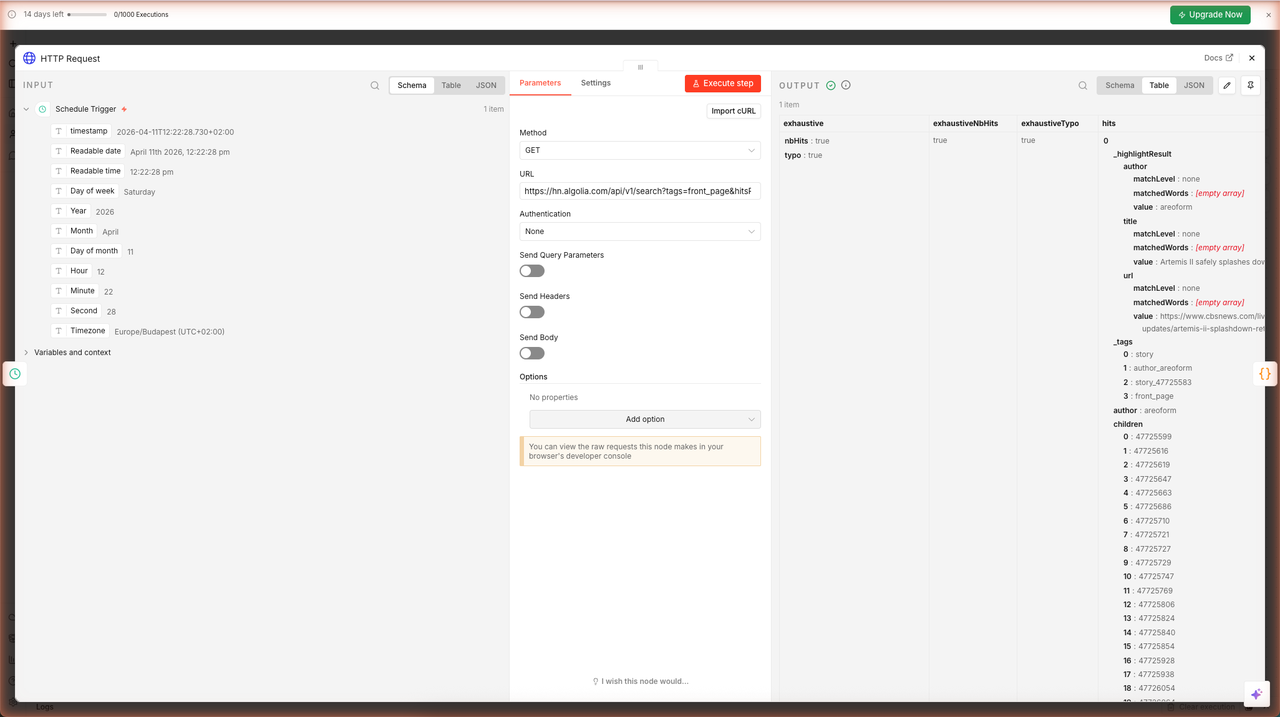 Each hit in the `hits` array contains fields like `title`, `url`, `points`, `objectID`, `author`, and `num_comments`. In the next step you will extract only the fields you need.
> **Why Algolia?** Hacker News's official API (`hacker-news.firebaseio.com`) requires one request per story — 10 requests to get 10 stories. The Algolia search API returns all front-page stories in a single call. It is the recommended endpoint for tools building on HN data.[^2]
---
## Step 4 — Extract Story Data with Code
The HTTP Request returns one big JSON object. You need to split it into 10 separate items (one per story) so downstream AI nodes can process them in parallel.
### 4a. Add a Code Node
Click **+** after HTTP Request. Search for **Code** and select **Code in JavaScript** (or just "Code").
### 4b. Enter the Extraction Script
The Code node opens with a CodeMirror editor. Clear the default code and paste the following:
```javascript
const hits = $input.first().json.hits;
return hits.map(hit => ({
json: {
title: hit.title,
url: hit.url,
points: hit.points,
objectID: hit.objectID
}
}));
```
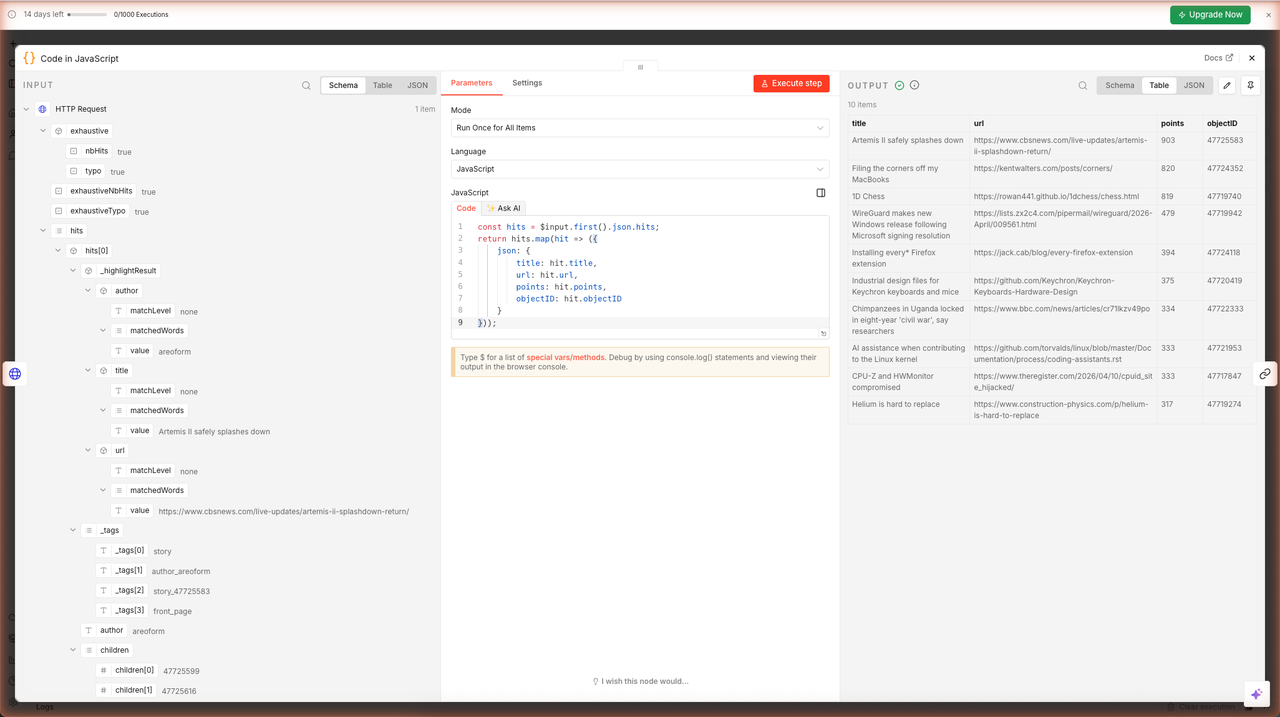
This iterates over the `hits` array and returns 10 separate n8n items, each containing the story's title, URL, points score, and unique ID.
### 4c. Execute and Verify
Click **Execute step**. The output shows **10 items** — one per story — each with the four fields.
Each hit in the `hits` array contains fields like `title`, `url`, `points`, `objectID`, `author`, and `num_comments`. In the next step you will extract only the fields you need.
> **Why Algolia?** Hacker News's official API (`hacker-news.firebaseio.com`) requires one request per story — 10 requests to get 10 stories. The Algolia search API returns all front-page stories in a single call. It is the recommended endpoint for tools building on HN data.[^2]
---
## Step 4 — Extract Story Data with Code
The HTTP Request returns one big JSON object. You need to split it into 10 separate items (one per story) so downstream AI nodes can process them in parallel.
### 4a. Add a Code Node
Click **+** after HTTP Request. Search for **Code** and select **Code in JavaScript** (or just "Code").
### 4b. Enter the Extraction Script
The Code node opens with a CodeMirror editor. Clear the default code and paste the following:
```javascript
const hits = $input.first().json.hits;
return hits.map(hit => ({
json: {
title: hit.title,
url: hit.url,
points: hit.points,
objectID: hit.objectID
}
}));
```
This iterates over the `hits` array and returns 10 separate n8n items, each containing the story's title, URL, points score, and unique ID.
### 4c. Execute and Verify
Click **Execute step**. The output shows **10 items** — one per story — each with the four fields.
 > **n8n expression syntax:** In later nodes you will reference these fields using double curly braces: `{{ $json.title }}` refers to the `title` field of the current item. `$input.first()` returns the first upstream item. `$now.toFormat('MMMM d, yyyy')` formats today's date as "April 11, 2026".
---
## Step 5 — Summarize Each Story with AI
Now that you have 10 separate story items, you can process them all through an AI model in one node.
### 5a. Add a Summarization Chain
Click **+** after the Code node. Search for **Summarization** and select **Summarization Chain**.
The node has two required sub-nodes shown at the bottom: **Model** (required) and **Document** (optional). You need to connect a language model.
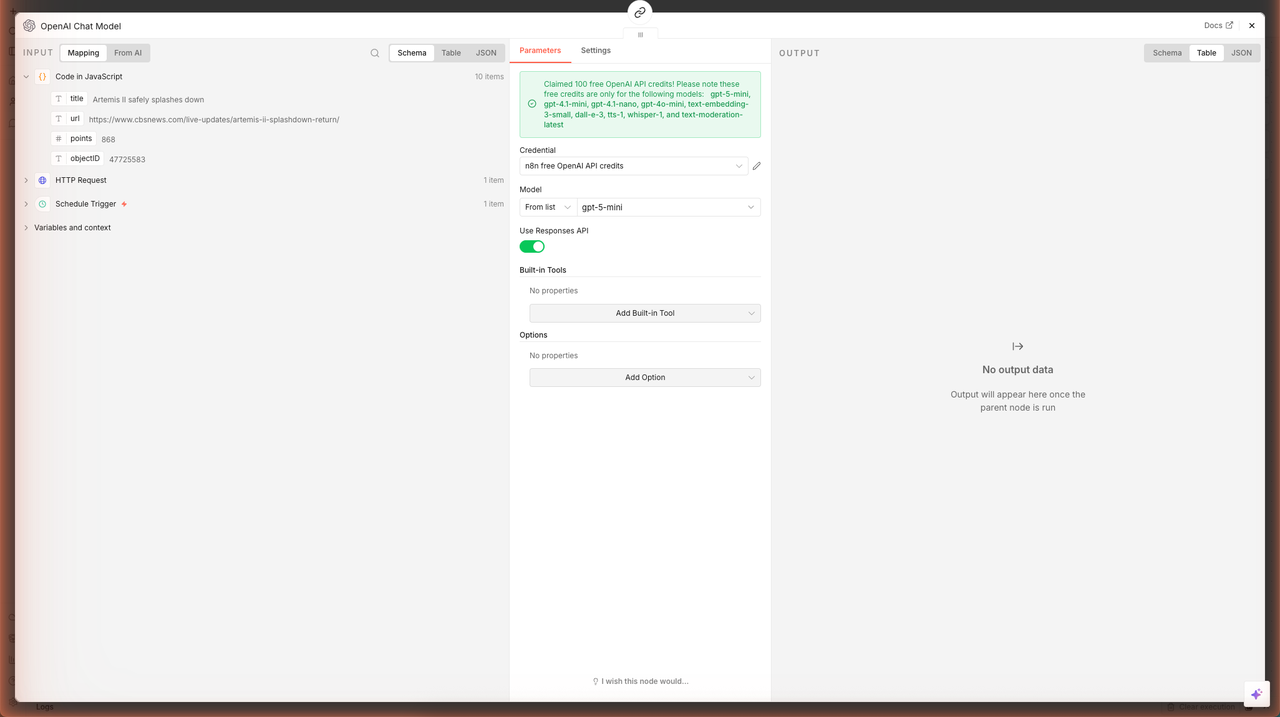
### 5b. Add an OpenAI Chat Model Sub-Node
Click the **+** button on the **Model** connector at the bottom of the Summarization Chain node. Select **OpenAI Chat Model**.
In the OpenAI Chat Model panel:
- **Credential:** select **n8n free OpenAI API credits** from the dropdown (this was created when you claimed the free credits earlier)
- **Model:** select `gpt-5-mini` (or `gpt-4o-mini`)
> **n8n expression syntax:** In later nodes you will reference these fields using double curly braces: `{{ $json.title }}` refers to the `title` field of the current item. `$input.first()` returns the first upstream item. `$now.toFormat('MMMM d, yyyy')` formats today's date as "April 11, 2026".
---
## Step 5 — Summarize Each Story with AI
Now that you have 10 separate story items, you can process them all through an AI model in one node.
### 5a. Add a Summarization Chain
Click **+** after the Code node. Search for **Summarization** and select **Summarization Chain**.
The node has two required sub-nodes shown at the bottom: **Model** (required) and **Document** (optional). You need to connect a language model.
### 5b. Add an OpenAI Chat Model Sub-Node
Click the **+** button on the **Model** connector at the bottom of the Summarization Chain node. Select **OpenAI Chat Model**.
In the OpenAI Chat Model panel:
- **Credential:** select **n8n free OpenAI API credits** from the dropdown (this was created when you claimed the free credits earlier)
- **Model:** select `gpt-5-mini` (or `gpt-4o-mini`)
 ### 5c. Configure the Summarization Prompt
Back in the Summarization Chain panel, set the **Individual Summary Template** to:
```
You are a tech news analyst. Here is a Hacker News story:
"{text}"
Write ONE sentence (max 25 words) explaining what this story is about and why it matters. Be direct and informative.
ONE-SENTENCE SUMMARY:
```
Leave **Final Combine Document Prompt** with the same template (it will only be used if you enable "Map Reduce" chain type — leave it as "Stuff" for this guide).
### 5d. Execute and Verify
Click **Execute step**. n8n sends all 10 stories through the LLM simultaneously and returns 10 output items, each with an `output` field containing the one-sentence summary.
### 5c. Configure the Summarization Prompt
Back in the Summarization Chain panel, set the **Individual Summary Template** to:
```
You are a tech news analyst. Here is a Hacker News story:
"{text}"
Write ONE sentence (max 25 words) explaining what this story is about and why it matters. Be direct and informative.
ONE-SENTENCE SUMMARY:
```
Leave **Final Combine Document Prompt** with the same template (it will only be used if you enable "Map Reduce" chain type — leave it as "Stuff" for this guide).
### 5d. Execute and Verify
Click **Execute step**. n8n sends all 10 stories through the LLM simultaneously and returns 10 output items, each with an `output` field containing the one-sentence summary.
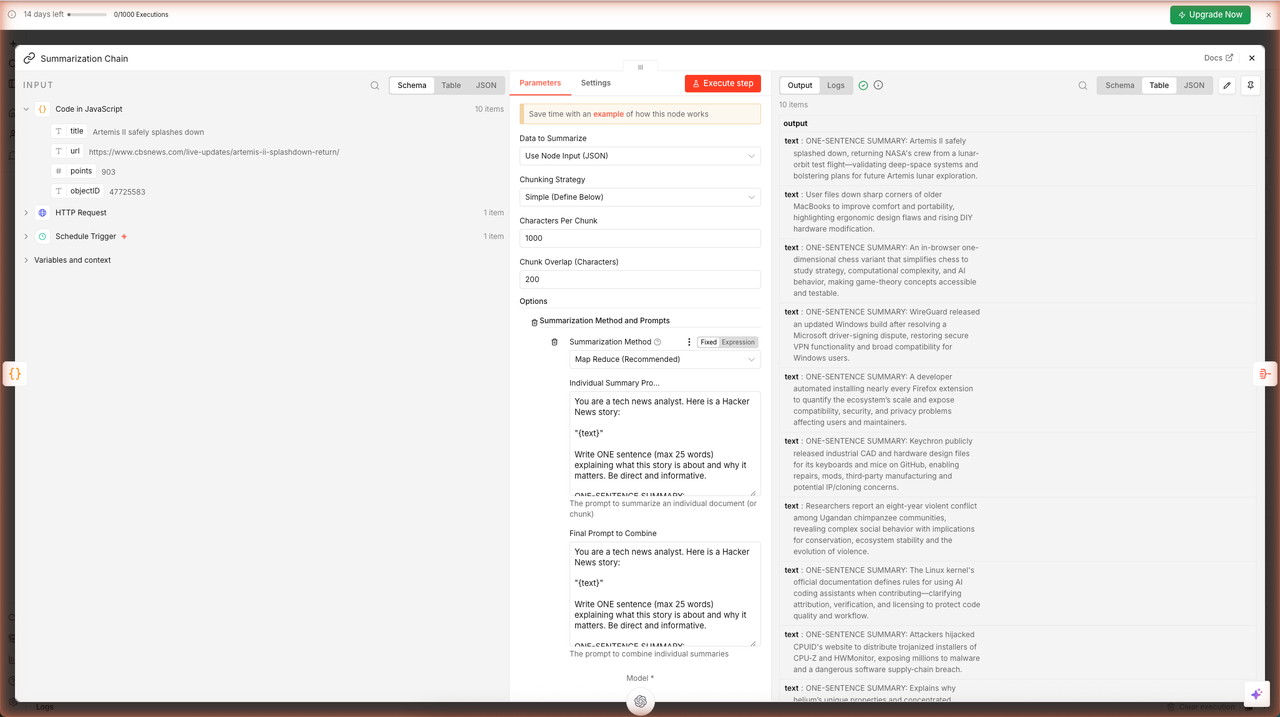 You now have 10 concise summaries, one per story — all generated from a single node execution.
---
## Step 6 — Aggregate & Format the Digest
You have 10 items. The AI Agent needs a single item containing all summaries so it can write the complete digest in one pass. The **Aggregate node** collapses multiple items into one.
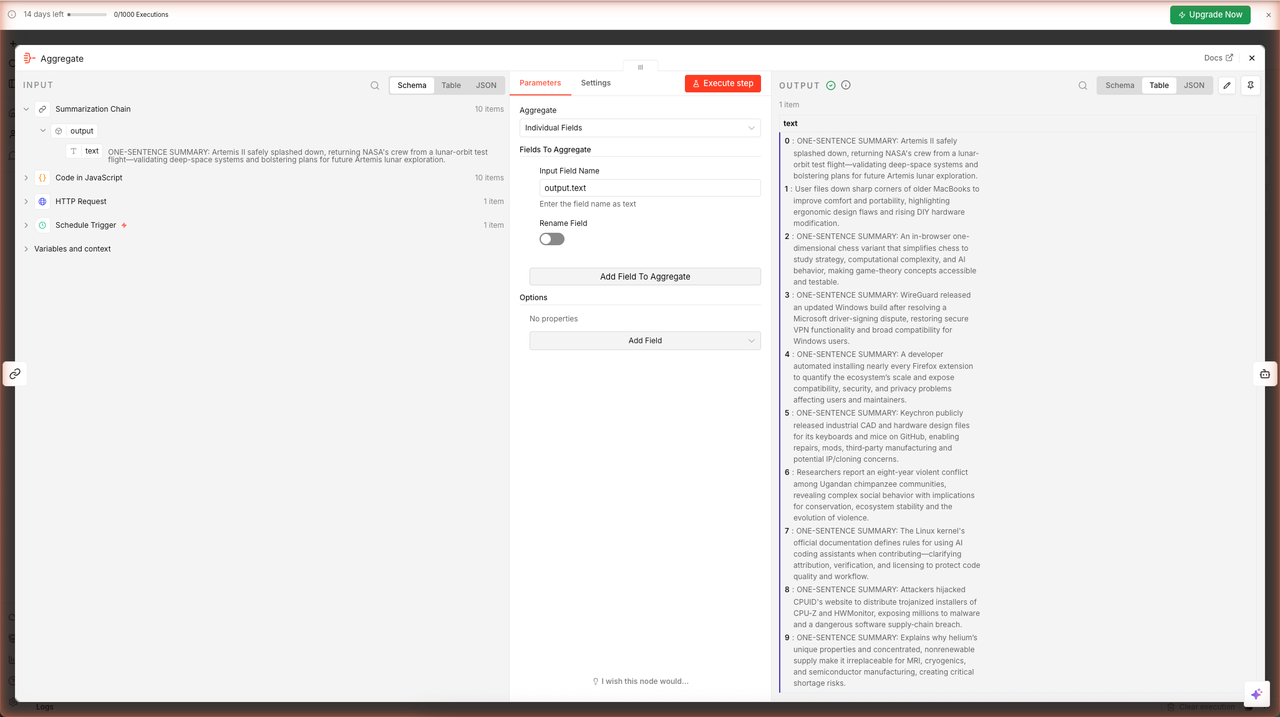
### 6a. Add an Aggregate Node
Click **+** after Summarization Chain. Search for **Aggregate** and select it.
In the Aggregate panel:
- **Aggregate:** set to **All Item Data (Into a Single List)**
- n8n automatically detects that the upstream items each have an `output` field and will merge them into a `text` array on the single output item
Click **Execute step**. Output shows **1 item** with a `text` array containing all 10 summaries.
You now have 10 concise summaries, one per story — all generated from a single node execution.
---
## Step 6 — Aggregate & Format the Digest
You have 10 items. The AI Agent needs a single item containing all summaries so it can write the complete digest in one pass. The **Aggregate node** collapses multiple items into one.
### 6a. Add an Aggregate Node
Click **+** after Summarization Chain. Search for **Aggregate** and select it.
In the Aggregate panel:
- **Aggregate:** set to **All Item Data (Into a Single List)**
- n8n automatically detects that the upstream items each have an `output` field and will merge them into a `text` array on the single output item
Click **Execute step**. Output shows **1 item** with a `text` array containing all 10 summaries.
 ### 6b. Add an AI Agent Node
Click **+** after Aggregate. Search for **AI Agent** and select it.
The AI Agent node has three sub-node connectors at the bottom:
- **Chat Model** (required) — the LLM that powers the agent
- **Memory** (optional) — conversation history storage
- **Tool** (optional) — external tools the agent can call
### 6c. Add OpenAI Chat Model to the Agent
Click **+** on the **Chat Model** connector. Select **OpenAI Chat Model**. Configure the same credential and model (`gpt-5-mini`) as in Step 5.
### 6d. Add Simple Memory
Click **+** on the **Memory** connector. Select **Simple Memory**.
In the Simple Memory panel:
- **Session ID:** change from "Connected Chat Trigger Node" to **Define below**
- **Key:** type `hn-digest`
- **Context Window Length:** leave at `5`
> **Why a fixed session key?** Simple Memory normally expects a session ID from a Chat Trigger. Since this workflow uses a Schedule Trigger (no user session), you must provide a static key. The key `hn-digest` tells n8n to read/write memory under that name every time the workflow runs.
### 6e. Configure the Agent Prompt
Back in the AI Agent panel, under **Parameters**:
- **Source for Prompt (User Message):** select **Define below**
- **Prompt (User Message):** paste this exactly:
```
You are an AI newsletter editor. Below are one-sentence summaries of today's top 10 Hacker News stories:
{{ $json.text.join('\n\n') }}
Format this as a clean, engaging daily tech digest email. Start with a 2-sentence intro for the date {{ $now.toFormat('MMMM d, yyyy') }}, then list each story as a numbered bullet. End with a friendly sign-off. Keep the tone informative and developer-friendly.
```
The expression `{{ $json.text.join('\n\n') }}` injects all 10 summaries separated by blank lines. `{{ $now.toFormat('MMMM d, yyyy') }}` inserts today's date dynamically.
### 6f. Execute and See the Digest
Click **Execute step**. The AI Agent runs — it loads memory (empty on first run), calls the LLM with your 10 summaries, and returns the formatted newsletter digest.
### 6b. Add an AI Agent Node
Click **+** after Aggregate. Search for **AI Agent** and select it.
The AI Agent node has three sub-node connectors at the bottom:
- **Chat Model** (required) — the LLM that powers the agent
- **Memory** (optional) — conversation history storage
- **Tool** (optional) — external tools the agent can call
### 6c. Add OpenAI Chat Model to the Agent
Click **+** on the **Chat Model** connector. Select **OpenAI Chat Model**. Configure the same credential and model (`gpt-5-mini`) as in Step 5.
### 6d. Add Simple Memory
Click **+** on the **Memory** connector. Select **Simple Memory**.
In the Simple Memory panel:
- **Session ID:** change from "Connected Chat Trigger Node" to **Define below**
- **Key:** type `hn-digest`
- **Context Window Length:** leave at `5`
> **Why a fixed session key?** Simple Memory normally expects a session ID from a Chat Trigger. Since this workflow uses a Schedule Trigger (no user session), you must provide a static key. The key `hn-digest` tells n8n to read/write memory under that name every time the workflow runs.
### 6e. Configure the Agent Prompt
Back in the AI Agent panel, under **Parameters**:
- **Source for Prompt (User Message):** select **Define below**
- **Prompt (User Message):** paste this exactly:
```
You are an AI newsletter editor. Below are one-sentence summaries of today's top 10 Hacker News stories:
{{ $json.text.join('\n\n') }}
Format this as a clean, engaging daily tech digest email. Start with a 2-sentence intro for the date {{ $now.toFormat('MMMM d, yyyy') }}, then list each story as a numbered bullet. End with a friendly sign-off. Keep the tone informative and developer-friendly.
```
The expression `{{ $json.text.join('\n\n') }}` injects all 10 summaries separated by blank lines. `{{ $now.toFormat('MMMM d, yyyy') }}` inserts today's date dynamically.
### 6f. Execute and See the Digest
Click **Execute step**. The AI Agent runs — it loads memory (empty on first run), calls the LLM with your 10 summaries, and returns the formatted newsletter digest.
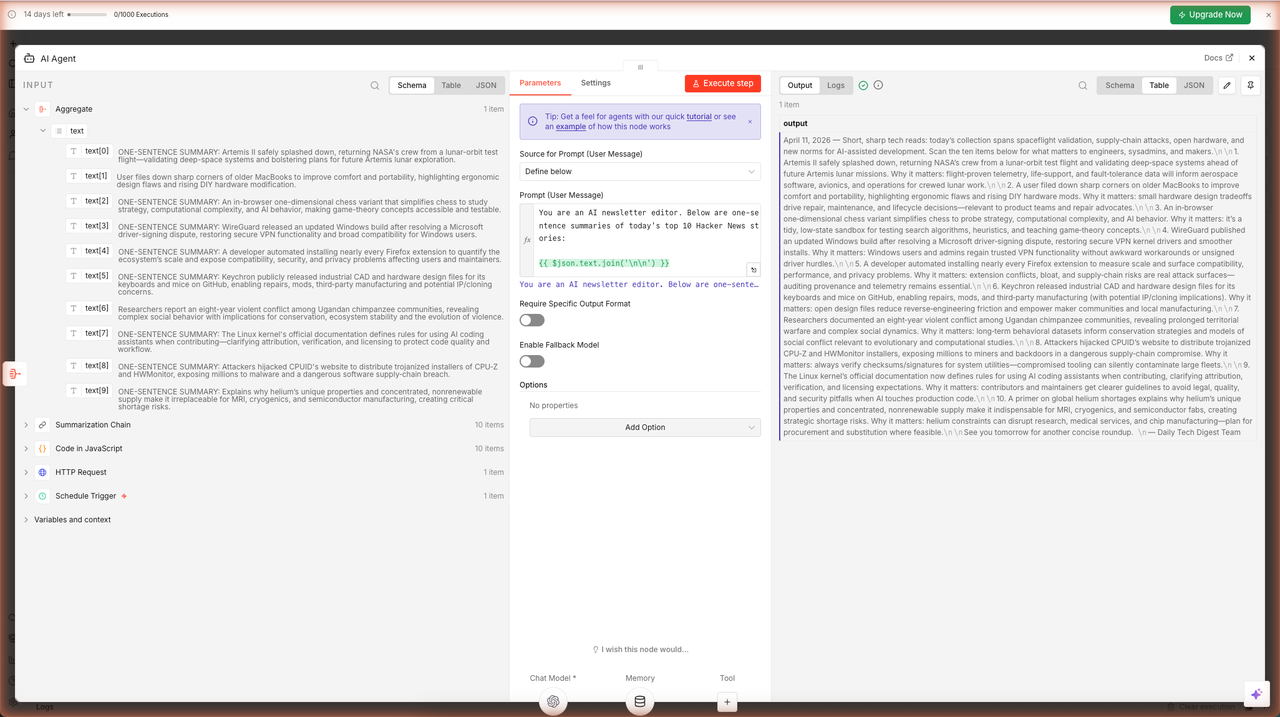 The output is a complete, formatted newsletter digest — ready to be delivered by email. Here is a sample of what the AI Agent produced during the live run for this guide:
> *April 11, 2026 — Today's roundup covers big moves in spaceflight, supply-chain security, open hardware, and how AI and human behavior shape critical projects. Short reads below with the essentials and why each item matters to developers, sysadmins, and makers.*
>
> *1. Artemis II astronauts safely splashed down, validating NASA's Orion spacecraft and systems — critical progress toward crewed lunar landings on Artemis III…*
### 6g. The Complete Workflow
Close the AI Agent panel. Click the **fit-to-screen** button (four-arrows icon, bottom-left of the canvas). You can now see the entire workflow — all 6 nodes with green checkmarks:
---
## What's Next
You have a working AI digest pipeline. Here are the natural next steps:
### Send the Email Automatically
Add a **Gmail node** (or **SendGrid**, **SMTP**, **Mailchimp**) after the AI Agent. Wire the AI Agent's output text as the email body. Set the recipient and subject, then **Activate** the workflow. From then on, n8n fires the entire chain daily at your chosen time and delivers the digest automatically — no manual clicks required.
### Expand the Data Sources
Replace or augment the Hacker News source:
| Source | n8n Approach |
|--------|-------------|
| Reddit (top posts) | HTTP Request → Reddit API |
| RSS feed | RSS Feed Read node |
| GitHub trending | HTTP Request → GitHub API |
| Multiple sources combined | Merge node + Aggregate |
### Tune the AI Prompts
- Make summaries shorter or longer by changing the word limit in the Summarization Chain prompt
- Add a "category" field in the Code node and group stories by topic in the Agent prompt
- Ask the Agent to rate each story's relevance to your team's stack
### Self-Host n8n
n8n is fully open-source[^1]. You can run it on a $5 VPS, a Raspberry Pi, or via Docker:
```bash
docker run -it --rm \
--name n8n \
-p 5678:5678 \
-v ~/.n8n:/home/node/.n8n \
n8nio/n8n
```
Self-hosting removes execution limits and keeps your workflow data on your own infrastructure.
---
[^1]: n8n GitHub repository — [github.com/n8n-io/n8n](https://github.com/n8n-io/n8n). Stars count as of April 2026.
[^2]: Hacker News Algolia API documentation — [hn.algolia.com/api](https://hn.algolia.com/api). The `tags=front_page&hitsPerPage=10` query returns the current top 10 front-page stories.
## Frequently Asked Questions
### Do I need to write code to build this workflow?
Almost none. The only code in the entire workflow is a 5-line JavaScript snippet in the Code node that extracts the title, URL, and points from each Hacker News story. Everything else — the AI summarization, the digest formatting, the HTTP call — is configured through n8n's visual node panels.
### Which OpenAI model does the workflow use?
The guide uses gpt-5-mini via n8n's built-in free OpenAI API credits (100 credits, no key required). You can swap it for any model n8n supports — gpt-4.1-mini, gpt-4o, Claude, Gemini — by changing the model selection in the OpenAI Chat Model node.
### What is the difference between Summarization Chain and AI Agent in n8n?
Summarization Chain processes one item at a time through a fixed prompt — perfect for batch operations like summarizing 10 news stories in parallel. AI Agent is a reasoning loop that can use tools, maintain memory, and make multi-step decisions — ideal for tasks like composing a formatted newsletter where you need contextual judgment.
### How do I actually send the digest email automatically?
Add a Gmail node (or SendGrid, Mailgun, or SMTP node) after the AI Agent. Connect the AI Agent's output text as the email body. Set the schedule trigger to fire at 7 AM daily and activate the workflow. n8n will run the full chain every morning and deliver the digest to any recipient you specify.
### Why does Simple Memory need a fixed Session ID for schedule-triggered workflows?
Simple Memory uses a session ID to namespace conversation history. By default it expects a sessionId from a Chat Trigger node. When using a Schedule Trigger (which has no user session), you must set Session ID to 'Define below' and provide a static key like 'hn-digest'. This tells n8n to store and retrieve memory under that fixed key instead of a dynamic chat session.
The output is a complete, formatted newsletter digest — ready to be delivered by email. Here is a sample of what the AI Agent produced during the live run for this guide:
> *April 11, 2026 — Today's roundup covers big moves in spaceflight, supply-chain security, open hardware, and how AI and human behavior shape critical projects. Short reads below with the essentials and why each item matters to developers, sysadmins, and makers.*
>
> *1. Artemis II astronauts safely splashed down, validating NASA's Orion spacecraft and systems — critical progress toward crewed lunar landings on Artemis III…*
### 6g. The Complete Workflow
Close the AI Agent panel. Click the **fit-to-screen** button (four-arrows icon, bottom-left of the canvas). You can now see the entire workflow — all 6 nodes with green checkmarks:
---
## What's Next
You have a working AI digest pipeline. Here are the natural next steps:
### Send the Email Automatically
Add a **Gmail node** (or **SendGrid**, **SMTP**, **Mailchimp**) after the AI Agent. Wire the AI Agent's output text as the email body. Set the recipient and subject, then **Activate** the workflow. From then on, n8n fires the entire chain daily at your chosen time and delivers the digest automatically — no manual clicks required.
### Expand the Data Sources
Replace or augment the Hacker News source:
| Source | n8n Approach |
|--------|-------------|
| Reddit (top posts) | HTTP Request → Reddit API |
| RSS feed | RSS Feed Read node |
| GitHub trending | HTTP Request → GitHub API |
| Multiple sources combined | Merge node + Aggregate |
### Tune the AI Prompts
- Make summaries shorter or longer by changing the word limit in the Summarization Chain prompt
- Add a "category" field in the Code node and group stories by topic in the Agent prompt
- Ask the Agent to rate each story's relevance to your team's stack
### Self-Host n8n
n8n is fully open-source[^1]. You can run it on a $5 VPS, a Raspberry Pi, or via Docker:
```bash
docker run -it --rm \
--name n8n \
-p 5678:5678 \
-v ~/.n8n:/home/node/.n8n \
n8nio/n8n
```
Self-hosting removes execution limits and keeps your workflow data on your own infrastructure.
---
[^1]: n8n GitHub repository — [github.com/n8n-io/n8n](https://github.com/n8n-io/n8n). Stars count as of April 2026.
[^2]: Hacker News Algolia API documentation — [hn.algolia.com/api](https://hn.algolia.com/api). The `tags=front_page&hitsPerPage=10` query returns the current top 10 front-page stories.
## Frequently Asked Questions
### Do I need to write code to build this workflow?
Almost none. The only code in the entire workflow is a 5-line JavaScript snippet in the Code node that extracts the title, URL, and points from each Hacker News story. Everything else — the AI summarization, the digest formatting, the HTTP call — is configured through n8n's visual node panels.
### Which OpenAI model does the workflow use?
The guide uses gpt-5-mini via n8n's built-in free OpenAI API credits (100 credits, no key required). You can swap it for any model n8n supports — gpt-4.1-mini, gpt-4o, Claude, Gemini — by changing the model selection in the OpenAI Chat Model node.
### What is the difference between Summarization Chain and AI Agent in n8n?
Summarization Chain processes one item at a time through a fixed prompt — perfect for batch operations like summarizing 10 news stories in parallel. AI Agent is a reasoning loop that can use tools, maintain memory, and make multi-step decisions — ideal for tasks like composing a formatted newsletter where you need contextual judgment.
### How do I actually send the digest email automatically?
Add a Gmail node (or SendGrid, Mailgun, or SMTP node) after the AI Agent. Connect the AI Agent's output text as the email body. Set the schedule trigger to fire at 7 AM daily and activate the workflow. n8n will run the full chain every morning and deliver the digest to any recipient you specify.
### Why does Simple Memory need a fixed Session ID for schedule-triggered workflows?
Simple Memory uses a session ID to namespace conversation history. By default it expects a sessionId from a Chat Trigger node. When using a Schedule Trigger (which has no user session), you must set Session ID to 'Define below' and provide a static key like 'hn-digest'. This tells n8n to store and retrieve memory under that fixed key instead of a dynamic chat session.